 Ask
AI that writes code in your folder: sites and tools, no experience
Contents
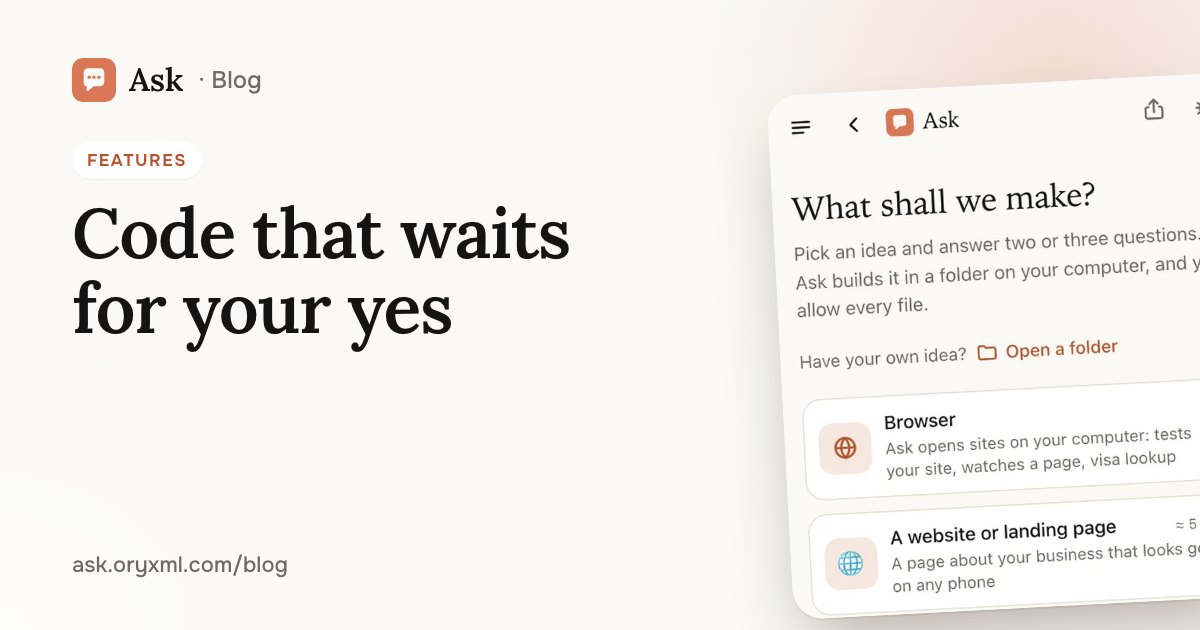
You need a simple site for your business, a calculator for the family, or a small program to rename a hundred photos, and there’s no programmer around. Ask’s Code writes code right in a folder on your computer, and you approve every step.
How it differs from a normal chat
In a normal chat, an AI shows you a piece of code and you work out where it goes and how to run it. In Code, Ask works with the files itself: it creates, reads and fixes them and runs commands, but only after you say yes.
- It works in your folder. You choose which folder Ask works in.
- Every change waits for your yes. Before changing a file or running a command, Ask shows what it’s about to do.
- The project stays yours. It’s kept on your computer, in your folder.
If you’re not a programmer
The most common fear: “I don’t understand any of this, I’ll break something and feel silly asking.” You won’t: Ask does nothing without your permission, and if you don’t understand what it suggests, just ask, in plain words. There are no silly questions here.
What you can make with no experience:
- A landing page for a coffee shop, a nail artist or a tutor: about, prices, contacts, reviews.
- A business card site or a portfolio with photos of your work.
- A simple tool: a renovation cost calculator, a to-do list, a timetable maker.
- A file helper: rename photos by date, merge spreadsheets into one.
Try asking: Build a one-page site for my coffee shop “Morning” in Kazan: a menu with prices, opening hours, the address with a map and a “Call us” button. Warm colours, brown and beige.
Try asking: Make a simple calculator page: I enter a room’s area and the price of laminate per square metre, it shows the total with 10% extra.
Tip: start with a new, empty folder. When Ask is done, ask how to open the result and look at it in your browser. If you want everyone to see the site, ask Ask how to put it online: it will walk you through it.
Example: a tutor’s site in an evening
Your first evening with Ask, if you’ve never written code, might look like this:
- Make a folder called “Site” on your computer and open Code in Chrome or Edge.
- Write: “Build a site for an English tutor: about me, subjects and prices, reviews, a ‘Book a lesson’ form.” Add your own texts and photos if you have them.
- Ask proposes the files to create: read what it’s about to do and confirm.
- Ask: “How do I open the site to look at it?” and open it in your browser.
- Refine: “bigger text on phones”, “change the blue to green”, “add a Telegram link”.
If something goes wrong, just say so: “The button doesn’t work, fix it.” You don’t need to know why it’s broken; saying what you see is enough.
If you’re a developer
For people who write code, Ask runs in the terminal, in any project folder:
- reads the code and explains how an unfamiliar project works;
- changes several files at once;
- runs tests and builds, and fixes what fails;
- writes tests, refactors, tracks down the cause of a bug.
Try asking: test_checkout fails since the last change. Find the cause, fix it and run all the tests.
Try asking: Explain how authentication works in this project and suggest where to add sign-in by an emailed code.
Claude and GPT / Codex models switch with /model: a light model is enough for quick edits, a stronger one for hard tasks. More in which AI model to choose.
Two ways to run it
| In the browser | In the terminal | |
|---|---|---|
| Where | Chrome or Edge on a computer | Mac, Windows or Linux |
| How to start | Open Code and choose a folder | Install with one command, run ask in the project folder |
| Sign-in | Your Ask account | A QR code from your phone, no password or API key |
| Suits | People who don’t use a terminal | Developers |
The install command is on the About page. If Node.js is missing, it’s installed for you. The account and plan are the same as in the app, so there’s nothing new to sign up for. You can start in the browser and move to the terminal later, once you’re comfortable.
How to get a good result
Describe the goal, not the technology. “A site where clients book a haircut” is clearer than “build a React app”.
Give details: texts, colours, sites you like, pictures.
Go step by step. The basics first, then “add a booking form”, then “make it look better on phones”.
Read what Ask proposes before saying yes. If it’s unclear, ask.
Check the result yourself. An AI can be wrong: open the site on your phone and try every button. If a program handles money or customers’ personal data, have someone who knows look at it.
Keep copies. Before a big rework, copy the project folder: if you don’t like the result, you’re back to the last version in a minute. Developers will prefer git: ask Ask to commit before a large change.
More techniques in how to ask an AI.
Plans
Code is on Plus and above. What each plan includes is on the Plans page and in the post on Ask’s plans.
Make an empty folder, describe what you want, and watch Ask build it in front of you.
Frequently asked questions
Do I need to know how to code?
Can Ask break something on my computer?
Which plans include Code?
Where is my project kept?
Try it on your own task
Your first answer arrives in seconds. No VPN, no password, and there’s a free plan.
Ask for freeKeep reading
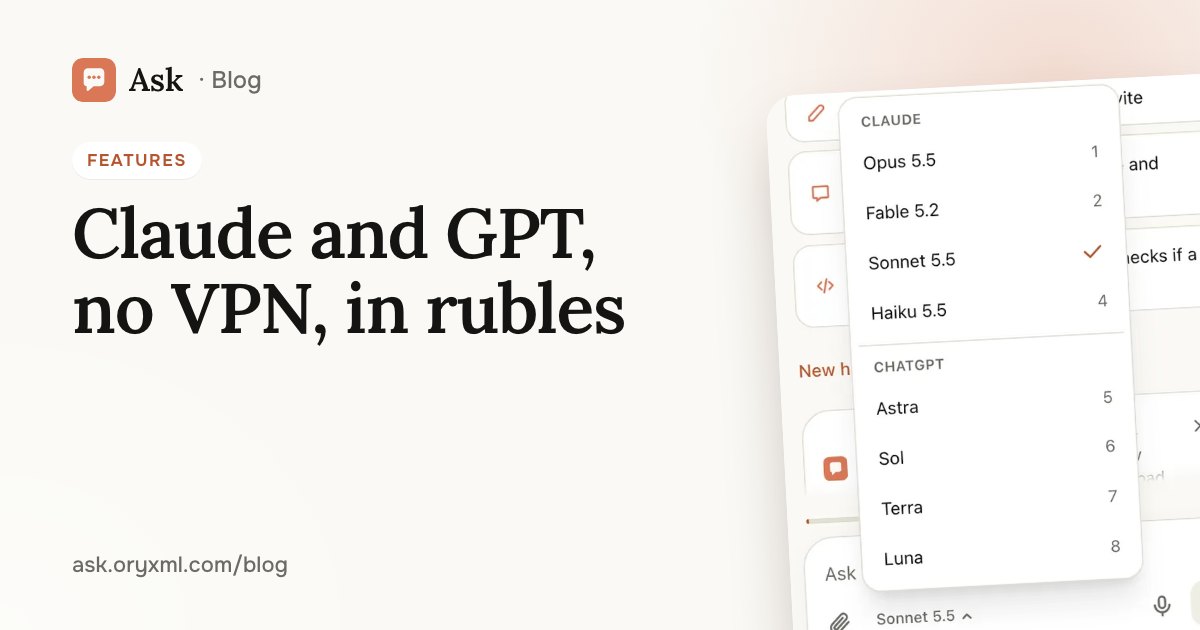
AI without a VPN in Russia: Claude and GPT, paid in rubles
How to use Claude and GPT / Codex in Russia without a VPN or a foreign card: open the site, sign in without a password, pay in rubles, install it as an app.
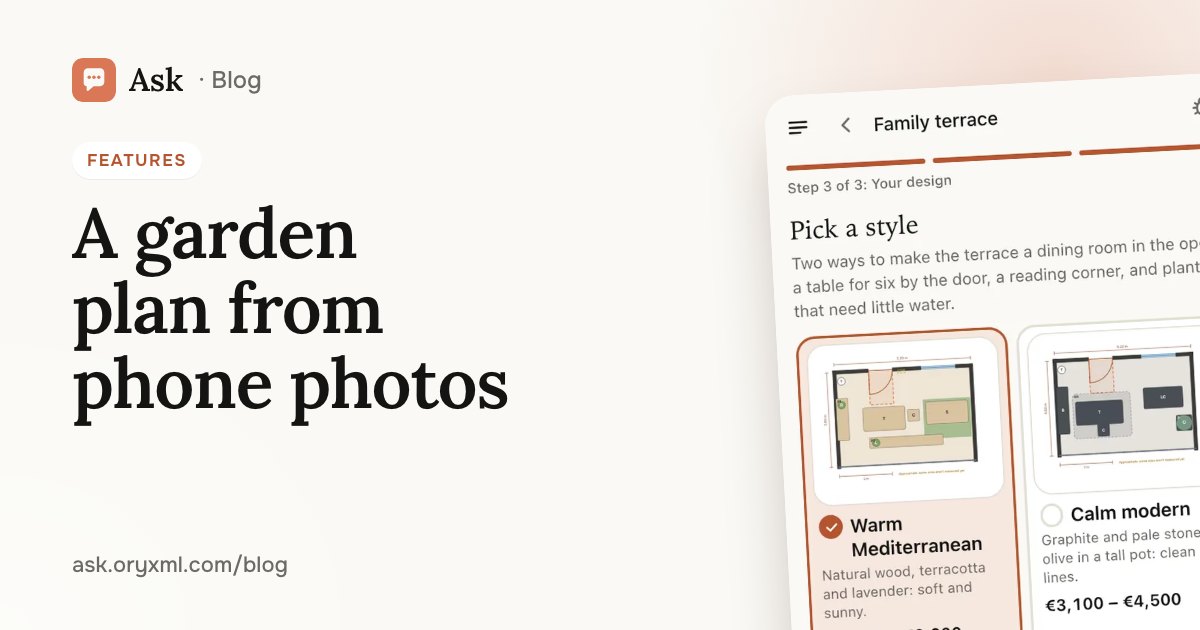
Garden, balcony or room design from photos: a plan made with AI
How to get a plan for a garden, terrace, balcony or room from phone photos and a few tape measurements: what to shoot, what to measure and what you get.
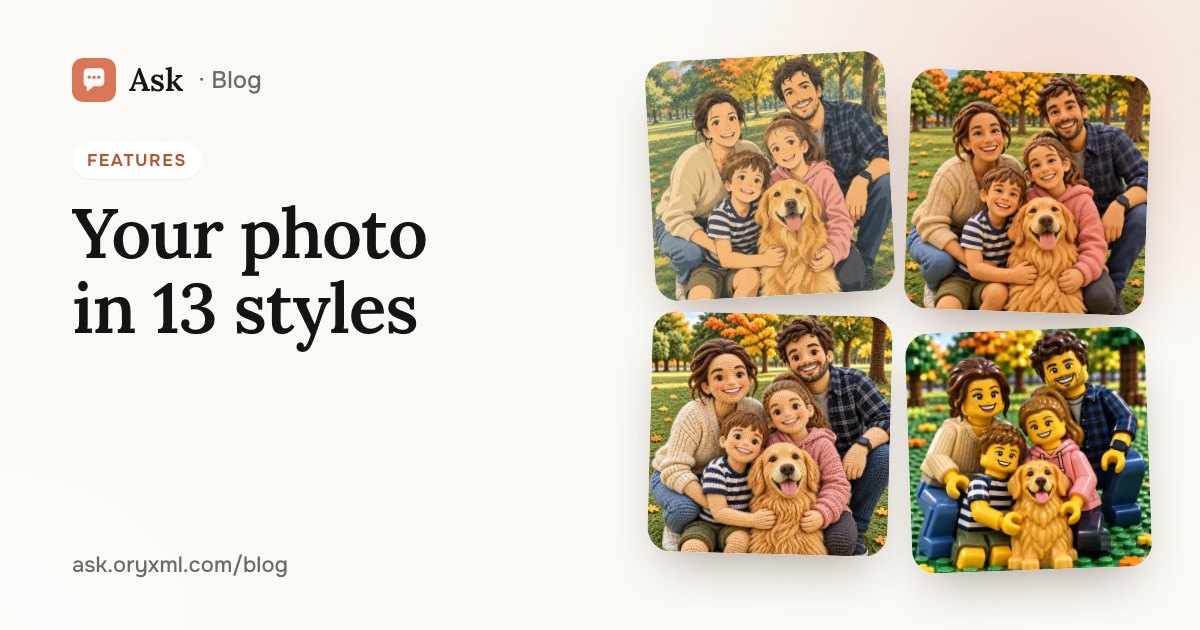
Your photo as anime, clay or a cartoon: 13 styles in Ask
Turn a photo of you, your family or your pet into anime, clay, crochet dolls or a boxed figure: which photo to pick and what each of the 13 styles looks like.