 Ask
How to make a presentation with AI in 10 minutes
Contents
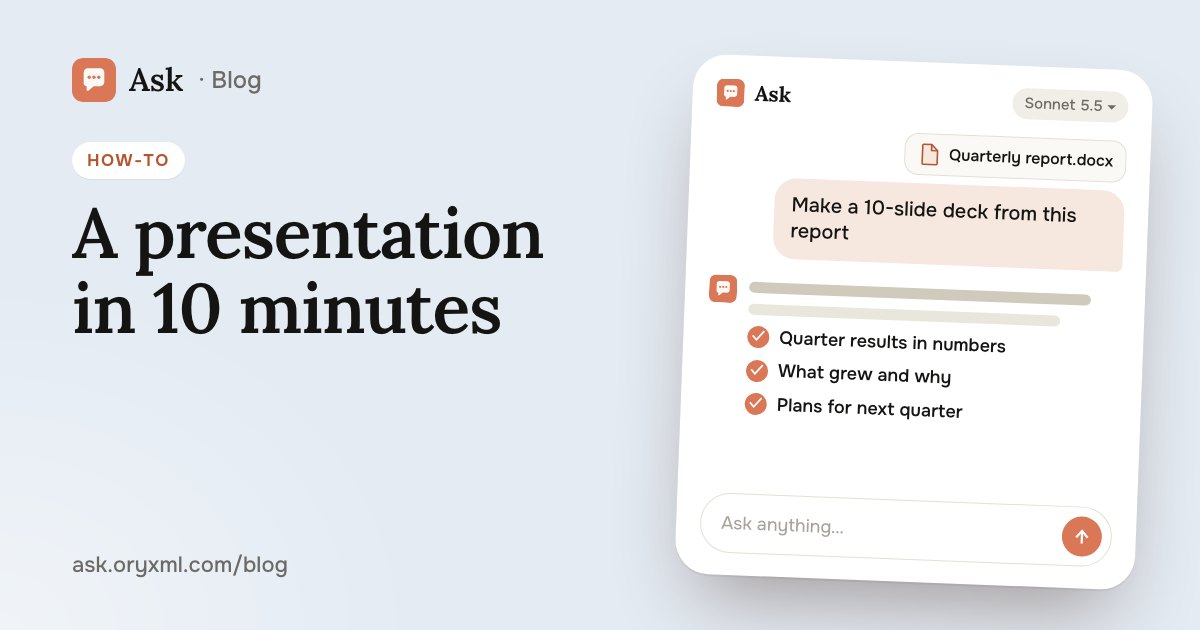
The presentation is due tomorrow and you have no energy left for slides: students and managers both know the feeling. With AI, the main work takes about ten minutes: you explain the task, check the outline, get designed slides and download them as PowerPoint or PDF.
Step 1. Describe the task
A good presentation starts not with slides but with three answers: who it’s for, why, and how long you have. Put them in one message.
Try asking: Make an 8-slide presentation for a 9th-grade biology talk, “How plants clean the air”. A 5-minute talk, simple, with interesting facts.
Try asking: I need a deck for my manager: the sales team’s results for the quarter. 10 slides, business style, ending with three proposals for next quarter. The data is in the file.
If you have material (a report, notes, an Excel sheet), attach it, up to 5 files at once. Then the slides are about your numbers, not generalities.
Step 2. Ask for the outline first
The most common mistake is asking for finished slides straight away. Ask for an outline first: a title and one or two points per slide.
Try asking: Before making slides, show me the outline: each slide’s title and main point. I’ll check it and tell you what to change.
It’s easier to catch what’s missing or extra: “merge slides 3 and 4”, “add a slide on risks”, “drop the history, open with the problem”. Fixing an outline takes seconds; reworking a designed deck takes longer.
Step 3. Get the slides
When the outline is right, ask for the presentation. In Ask, the AI writes and designs the slides itself. Say what matters:
- style: formal business, bright for school, minimal;
- colours: your company’s, for example;
- how much text: “no more than 20 words a slide” is a good rule for a talk;
- anything else: a sources slide, a closing slide with your contacts; you can ask for a script for each slide in a separate message.
Step 4. Fix the slides
It’s rarely perfect first time, and that’s fine. Fix things one at a time, by slide number:
- “Slide 2 has too much text: keep three short points.”
- “Make slide 5 a before-and-after table.”
- “Give the first slide a catchier title.”
- “Add a ‘Thank you’ slide at the end with my contacts.”
More on phrasing requests like these in how to ask an AI.
Step 5. Download PowerPoint or PDF
Download the finished deck as PowerPoint, to keep working in the program you know, or as PDF, to email it or show it on any computer with no font surprises. Before the talk, open the file on the computer you’ll present from and click through every slide.
If you already have a presentation
Sometimes the slides exist but the text needs rewriting: for another audience, shorter, or in English. Attach your PowerPoint or Word file and say what to change: Ask changes the text in the file.
Try asking: Here’s my presentation. Cut the text on every slide in half and make it simpler: I’m presenting to parents, not colleagues.
Try asking: Translate this presentation’s text into Russian, keeping a business tone.
Tips for school, work and a pitch
School and university. A common worry is that the teacher will notice an AI made it. The surest answer is to make it yours: check every fact, retell the slides in your own words, add your own example. Ask the AI to explain the topic so you can handle questions after the talk. More ideas in AI for studying.
Work. Lead with the conclusion: your manager should get the point from the first slide. Take numbers from your own files and check them against the source, since an AI can slip when recalculating. If the data lives in spreadsheets, see spreadsheets with AI.
A pitch to investors or clients. The classic order: problem, solution, who it’s for, how you make money, team, what you’re asking for. Ask the AI to play a sceptical investor and put five awkward questions to your slides: it prepares you for the conversation better than proofreading.
An example from start to finish
Say Marina has to tell her colleagues on Friday about the team’s move to a new CRM. Here’s her conversation with the AI:
- “Make a 7-slide presentation for the sales team: why we’re moving to a new CRM, what changes and when. The audience is 12 managers, many of them against the change. A 10-minute talk.” Plus the rollout plan attached.
- “Show me the outline first.” Marina sees nothing about training and asks: “Add a slide on how and when the training happens and who will help.”
- “Now make the slides. A calm business style, blue and grey, no more than three points a slide.”
- “On slide 4, replace the list with a timeline.” “Last slide: questions and contacts, Marina, extension 214.”
- She downloads the PowerPoint, adds the company logo and rehearses aloud.
Notice that Marina never wrote a long instruction. Each message is one clear change.
Common mistakes
- Too much text. A slide is a cue for the audience, not your crib sheet.
- Unchecked facts. Always check numbers, dates, quotes and names against a source.
- No main point. If you can’t say what the deck is about in one sentence, ask the AI to help you put it into words.
- No rehearsal. Read it aloud at least once and time yourself.
Describe the task, check the outline, and in ten minutes you’ll have a deck that only needs rehearsing.
Frequently asked questions
Which formats can I download?
Can I make a presentation from my own document?
Can Ask change the text of a presentation I already have?
Can I trust the facts in the slides?
Try it on your own task
Your first answer arrives in seconds. No VPN, no password, and there’s a free plan.
Ask for freeKeep reading
How to check a contract with AI: a step-by-step guide
Check a rental, employment, purchase or service contract with AI: what to ask about penalties, termination and hidden payments, and what AI can't replace.
Explain a document from a photo with AI: bills, letters, lab results
Photograph a utility bill, bank statement, manual, official letter or lab results, and AI explains it in plain words. How to shoot it and what to cover first.
AI for Excel: how to analyse spreadsheets and write reports
Analyse an Excel spreadsheet with AI: totals, trends, outliers, a summary for your boss, VLOOKUP, XLOOKUP and SUMIF explained, data cleaning and what to check.